Google Business Profile Optimization Guide 2026
When someone types "restaurant near me" or "salon in Gulshan," Google decides who shows up first. This guide shows you exactly how to win that spot — for free.
Why This Matters More Than You Think
Let me paint a picture. It is Friday evening. A family in Banani is hungry. The father picks up his phone and types "best Thai food near me" into Google.
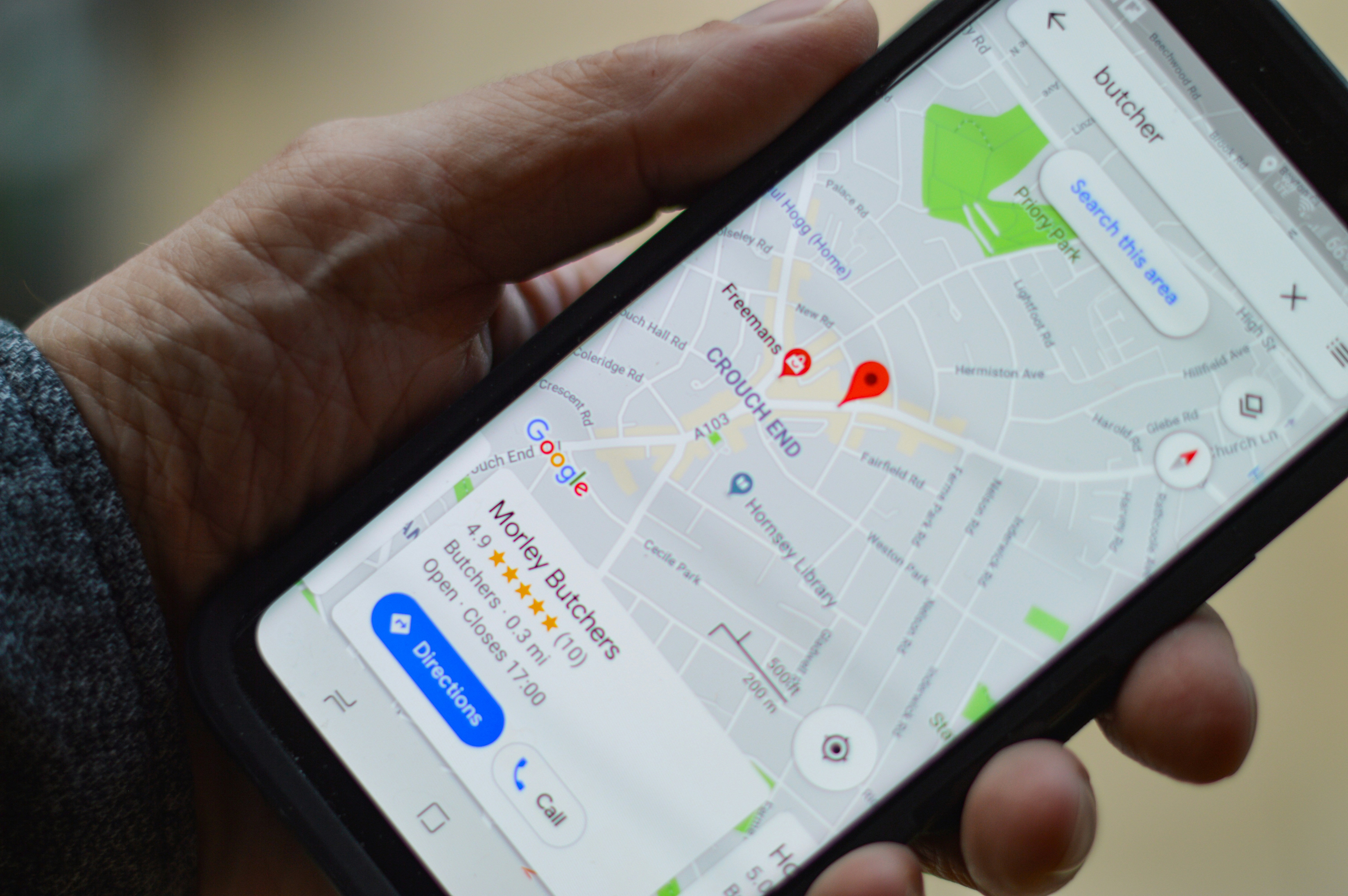
Google does not show a random list. It shows a map pack — three businesses at the top, with photos, ratings, hours, and a "Call" button. Below that, a longer list of results with the same details.
Here is what the data says: 76% of people who search for something nearby visit a business within 24 hours. And 28% of those searches result in a purchase.
If your restaurant, salon, or shop is not in those top three results, you are invisible to three-quarters of the people actively looking for what you offer. Not invisible on social media. Invisible on Google — the place where people go when they are ready to spend money.
The best part? Google Business Profile is completely free. You do not need a website to claim it. You do not need to pay for ads. You just need to set it up correctly and keep it updated.
Step 1: Claim and Verify Your Profile
Go to google.com/business and sign in with your Google account. Search for your business name. If it already exists (Google creates listings automatically from public data), you need to claim it. If it does not exist, create a new one.
Google will send you a verification code — either by postcard, phone call, or email. Enter that code and your profile goes live.
A few important notes:
- Use your real business name. Do not stuff keywords into it. If your salon is called "Luxe Studio," list it as "Luxe Studio" — not "Luxe Studio Best Salon in Gulshan Dhaka." Google penalizes keyword stuffing.
- Choose the right category. This is the single most important field. If you are a restaurant, pick "Restaurant" — not "Business" or "Local Business." Be as specific as Google allows. If you are a salon, pick "Beauty Salon." If you serve food and drinks, pick "Cafe" or "Coffee Shop" based on what you actually are.
- Add your service area. If you deliver or serve customers in specific neighborhoods, list them. This helps Google match you to searches from those areas.
Step 2: Complete Every Single Field
This is where most businesses stop halfway. They add their name and address, then leave. Google rewards completeness. A fully filled profile gets more visibility than one with gaps.
Here is what you need to fill in:
- Business name — exactly as it appears in real life
- Primary category — the most specific option available
- Secondary categories — add all that apply. A restaurant that also does catering can add both "Restaurant" and "Caterer"
- Address — full, accurate street address. If you are inside a building, add floor or unit number
- Phone number — your primary business number. Make sure it connects to someone who can answer
- Website — if you have one, add it here. If not, this is the single biggest reason to get a website built
- Hours — set your real hours. Include holiday hours if applicable. Nothing frustrates a customer more than showing up to a closed shop
- Description — write 2–3 sentences about what you do, who you serve, and what makes you different. Use natural language. Mention your neighborhood
- Attributes — Google gives you specific attributes to check off: "Wheelchair accessible," "Free Wi-Fi," "Accepts credit cards." Fill in every one that applies
- Services/Menu — list your services or menu items with prices. This is the field most businesses ignore, and it is the one that saves you the most customer questions

Step 3: Add Photos That Actually Convert
Google says businesses with photos receive 42% more direction requests and 35% more click-throughs to their website than those without. But it is not just about having photos — it is about having the right photos.
The photos you need (in order of priority)
- Cover photo — your best exterior shot or your signature dish. This is the first thing people see.
- Logo — your brand logo, clear and centered.
- Interior photos (3–5) — show the space. People want to know what it looks like before they walk in. Clean, well-lit shots.
- Product/service photos (5–10) — your best food dishes, your best hair work, your best products. High quality matters here.
- Team photos (optional but powerful) — people trust faces. A photo of your team smiling builds warmth.
- Video (if possible) — a 30-second walk-through of your space. Nothing fancy, just your phone camera moving through the shop.
Photo tips that matter
- Shoot in natural light whenever possible. Dark, grainy photos signal low quality — even if the food or service is excellent.
- Use landscape orientation (horizontal). Google crops vertical photos badly.
- Add new photos at least once a month. An account with 47 photos from 2023 and nothing since looks abandoned.
- Geotag your photos if you can — it helps Google confirm your location.
Step 4: Get Reviews and Actually Respond to Them
Reviews are the single biggest factor in local search rankings. A business with 50 reviews and a 4.5 rating will almost always rank above a business with 5 reviews and a 5.0 rating. Volume matters.
How to get more reviews
- Ask in person. After a great service, say: "If you liked it, a Google review would really help us." Most happy customers will do it if you ask. They just never think of it.
- Create a direct review link. Google gives you a short link that takes customers straight to the review form. Share it via WhatsApp after every appointment or order.
- Never offer incentives. Google explicitly bans "review gating" or offering discounts for reviews. If caught, your profile can be penalized.
How to respond to reviews
Every review — positive or negative — should get a response. This does two things: it tells Google your profile is active (which helps rankings), and it shows potential customers that you care.
For positive reviews: Thank them by name. Mention something specific. "Thanks, Fatima! So glad you loved the biryani. See you next week!"
For negative reviews: Stay calm. Acknowledge the issue. Offer to fix it offline. "We are sorry your experience did not meet expectations, Karim. Please reach out to us at [phone] so we can make it right."
Step 5: Post Weekly Updates
Google Business Profile has a "Posts" feature that works like social media updates. You can share offers, events, menu changes, or new photos. Most businesses never use it.
Post once a week. It does not need to be long. A photo of your daily special, a short announcement about holiday hours, or a quick "We are open!" post during peak hours. Google rewards active profiles with better placement in search results.
Post ideas that work
- "Today's special: [dish name] — only available until 4 PM"
- "We are now open on Fridays until 11 PM!"
- "New service alert: keratin treatments now available"
- "Ramadan hours: open 3 PM – 2 AM"
- A photo of a recent customer transformation (with permission)

Step 6: Avoid These Common Mistakes
These mistakes are more common than you think, and they can silently kill your visibility:
- Inconsistent NAP (Name, Address, Phone). If your name is "Luxe Studio" on Google but "Luxe Studio Salon" on Facebook and "LuxeBeauty" on Instagram, Google gets confused. Keep your name, address, and phone number identical everywhere.
- Wrong hours. If Google shows you as "Open" and a customer shows up to a locked door, that customer leaves a 1-star review. Update your hours before holidays.
- Ignoring the Q&A section. Anyone can ask a question on your Google listing. If nobody answers it, the wrong information can spread. Monitor this section weekly.
- Creating duplicate listings. If you moved locations, do not create a new profile — update the old one. Duplicate listings split your reviews and confuse Google.
- No profile photo. A listing with no photo is like a shop with the lights off. People scroll past it.
Bonus: What to Do After Google
Google Business Profile is the foundation, but it is not the whole building. Once your Google profile is optimized, extend the same effort to:
- Apple Maps. If your customers use iPhones (and in Bangladesh, they do), make sure you are listed on Apple Maps too. Go to mapsconnect.apple.com.
- Facebook Page. Same rules apply: complete info, real photos, regular posts, and responsive messaging.
- A website. This is the real unlock. A website with your menu, your services, your photos, and a WhatsApp booking button ties everything together. Google gives preference to businesses with websites in search rankings.
Your Complete Checklist
Bookmark this page and work through it step by step. Here is the condensed version:
- ☐ Claim your Google Business Profile at google.com/business
- ☐ Verify your listing (postcard, phone, or email)
- ☐ Set your primary and secondary categories correctly
- ☐ Fill in every field: hours, phone, website, description, services
- ☐ Add at least 10 high-quality photos (cover, logo, interior, products)
- ☐ Ask 5 happy customers for reviews this week
- ☐ Respond to every existing review — positive and negative
- ☐ Post one update per week (specials, hours, photos)
- ☐ Check your Q&A section weekly
- ☐ Ensure your NAP is identical across Google, Facebook, and any directory
This is free. This takes a few hours to set up and about 30 minutes per week to maintain. And it can bring you more customers than any Instagram ad campaign you have ever run.
Want to go a step further?
A website ties your Google presence together — your menu, your photos, your booking link, all in one place. We build them for small businesses in 24 hours.
Get your free demo